Extension Working Process
Login
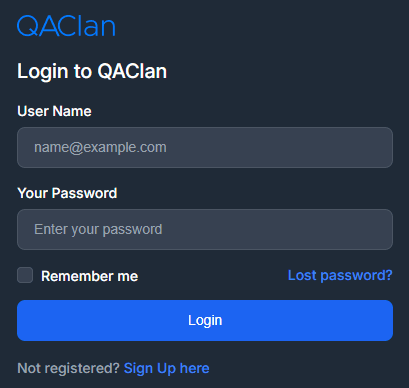
To access the QA Clan extension:
- Enter your registered email address and password into the respective fields.
- Click the Login button.
This will securely authenticate your credentials and grant you access to the extension’s features.
Recording a New Test Case
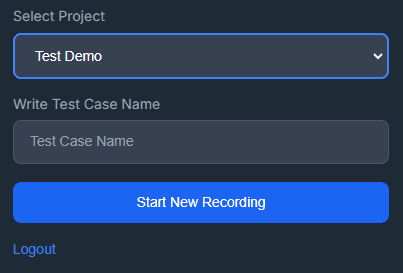
To record a new test case:
- Select the desired project from the dropdown menu in the QA Clan extension.
- Enter a descriptive name for your test case in the provided field.
- Click the Start New Recording button to begin capturing your test actions.
This streamlined process ensures that your test cases are accurately recorded and well-organized from the start.
Assertions
Assertions validate the correctness of outcomes by verifying that each step in a test case produces the expected result. They are a fundamental part of any test, as they confirm whether the application behaves as intended. Without assertions, tests would merely execute actions without validating outcomes, making it difficult to identify issues.
For example, consider a scenario where you need to ensure that a user successfully adds an item to their shopping cart. In this case, an assertion might verify that the cart’s item count increases by one after the “Add to Cart” button is clicked, confirming that the functionality works as expected.
Additionally, the QA Clan recorder is designed to enforce the inclusion of assertions. If you attempt to complete a test recording without adding an assertion, the recorder will not submit the test case and will display a message: “No assertion step found.” This ensures that every test case has the necessary verification steps to validate its outcomes.
Types of Assertions
Text Assertion
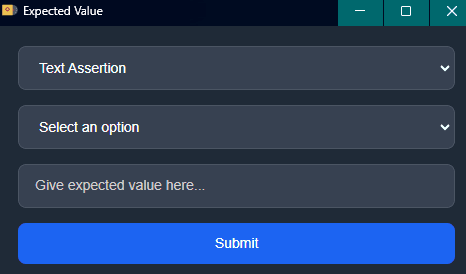
To perform a text assertion during a recording:
- Right-click while the recorder is active and select QAClan Test Case Recorder from the context menu.
- Choose Assert expected value to open the Expected Value window.
- From the first dropdown, select Text Assertion.
- From the second dropdown, choose one of the following assertion types:
- Equal
- Contains
- Starts With
- Ends With
- Enter the desired text in the Give expected value here… field.
- Click Submit.
This process allows you to verify that specific text appears exactly as intended, providing confidence in the accuracy of your test results.
Element Existence and Visibility Assertion
To be completed.
Hover Action
To record a hover action:
- Right-click while the recorder is active and select QAClan Test Case Recorder from the context menu.
- Choose Hover on Element.
This step captures the behavior that occurs when you move the mouse over an element—such as a dropdown menu or side menu appearing—ensuring your test case accurately reflects real user interactions.
File Upload
To be completed.