Manual Test Case
QA Clan supports manual testing for users who prefer a more hands-on approach instead of fully automated testing. Follow the steps below to create a manual test case:
Steps to Create a Manual Test Case
-
Log in to QA Clan
Visit https://app.qaclan.com/ and log in to your account. -
Access Your Project
From the Dashboard or Test Cases section, select the project in which you want to create a manual test. -
Open Manual Test Case
Click the Manual Test Case button, which opens a popup window prompting you to name your test case. -
Name Your Test Case
Enter a descriptive name in the Test Case Name field, then click Create Test Case. -
Add Steps and Commands
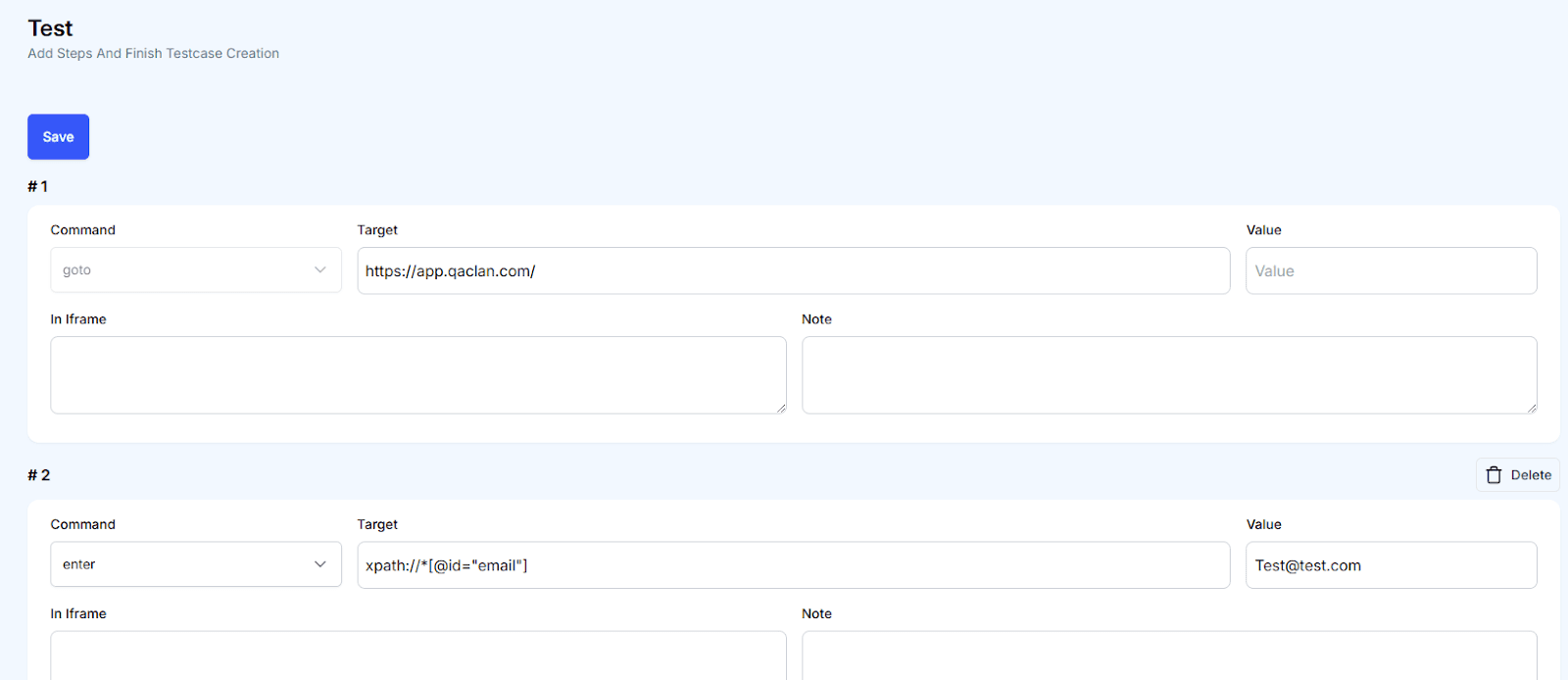
In the newly created manual test case, you’ll see a series of rows where each row represents a step. Fill out the following fields for each step:- Command: Select an action from the dropdown (e.g.,
goto,click,enter,select,wait,assert,search,press). - Target: Specify the relevant element or URL (e.g., an
xpathor a website address). - Value: Provide additional input if required by the command (e.g., text to enter).
- Note (optional): Add comments or instructions for clarity.
- Command: Select an action from the dropdown (e.g.,
-
Save and Run
After adding the necessary steps, click Save to finalize your manual test case. You can then run it from the Test Cases menu, just like an automated test case.
This flexibility ensures that QA Clan accommodates both automated and manual testing workflows, allowing you to choose the approach that best suits your project requirements.